
First of all, let me tell, you have found the english page of the wp-forecast reference.
This translation was well done by Barbara at a really sunny day.Barbara, thanks a lot for your work. The wp-forecast reference in english is updated frequently. For the most recent information you can have a look at german reference page
This document will be completed step by step.
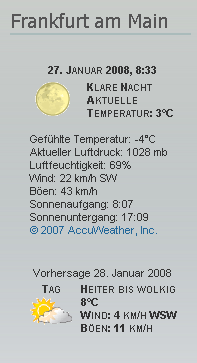
wp-forecast is a plugin for the popular blogging software WordPress. This plugin offers the possibility to display the current weather as well as a weather forecast for up to nine days and twenty locations. The plugin uses the weatherdata from accuweather.com. This way it is possible to display weather information for nearly all places on earth in your own WordPress blog. In addition to the functionality of choosing a location and making general configurations (for instance the interval for updating the weather data), wp-forecast gives you the possibility to display or hide every single weather information. A simple weather display looks like this:
wp-forecast is published under the GNU General Public License. Additionally please note the terms of license of accuweather.com.
I am taking great efforts in testing the software that I develop and in trying not to produce any errors, but I still cannot exclude the incidence of a serious error. Therefore I do not take the responsability or warranty for the software that I am placing at disposal. The software can only be used on one’s own risk, I cannot be made responsible for any damages (for instance loss of data) caused by using my software.
2. Download
In this section you find a link to the current version of wp-forecast for download. Older versions can be found in the section “Version History”.
wp-forecast requires PHP version 4.3 or higher and WordPress Version 2.2.x or higher. No more specific features are necessary. However some web hosts are blocking the PHP function ‚fsockopen‘, which prevents wp-forecast from collecting the weather data. In this case you should ask your hoster to enable the function ‚fsockopen‘ (and rather switch to another hoster if he doesn’t).
The installation of wp-forecast is like installing any other WordPress plugin. First unzip the archive to a local directory (using winzip, unzip or tar). Then upload the directory wp-forecast on your WordPress server into the directory wp-content/plugins.
Now log in to your WordPress account as administrator. Under ‚Plugins‘ you can activate the plugin by clicking ‚activate‘.
If you have already installed wp-forecast and now want to use a newer version, it is not necessary to deactivate the plugin. Just copy the new files into your wp-forecast directory. By deactivating the plugin all your settings will be deleted.
To accomodate the look of the wp-forecast widgets to your own liking, you can edit the file wp-forecast.css, which is a cascading stylesheet file. You find a good CSS reference here: http://www.w3schools.com/cssref/.
A wp-forecast widget is displayed in this class hierarchy:
<div class="wp-forecast">
   <div class="wp-forecast-curr">
     <div class="wp-forecast-curr-head">
     </div>
     <div class="wp-forecast-curr-block">
       <div class='wp-forecast-curr-left'>
       </div>
       <div class='wp-forecast-curr-right'>
       </div>
     </div>
     < class="wp-forecast-curr-details">
       <div class="wp-forecast-copyright">
       </div>
     </div>
   </div>
   < class="wp-forecast-fc">
     <div class="wp-forecast-fc-oneday">
       <div class="wp-forecast-fc-head">
       </div>
       <div class="wp-forecast-fc-block">
         <div class="wp-forecast-fc-left">
         </div>
         <div class='wp-forecast-fc-right'>
         </div>
      </div>
      <div class="wp-forecast-fc-block">
        <div class="wp-forecast-fc-left">
        </div>
         <div class='wp-forecast-fc-right'>
         </div>
       </div>
    </div>
    ... repeats for every forecast day ...
   </div>
 </div>
4. Configuration
The plugin’s settings, except for the widget options (see 5.1), can be done under Settings – wp-forecast.
4.1 Number of displayed locations and widgets, system parameter
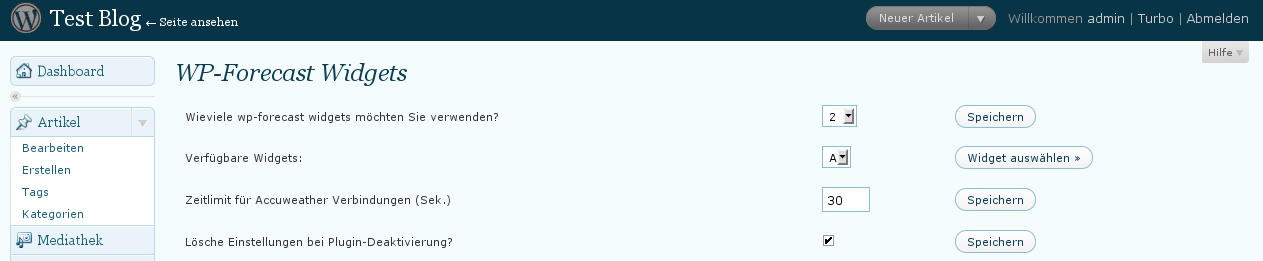
In the upper part of the settings dialog the number of the used widgets is fixed and the settings of each widget can be selected.
wp-forecast supports up to twenty widgets, so it is possible to display the weather of up to twenty locations in your blog. Just select the number of widgets you would like to display from the dropdown list and click on “save”.
Each widget is assigned to a widget ID. This widget ID is a letter from A to T. By this letter each widget is identified definitely.
To configure a widget it can be selected by its widget ID from the second dropdown list. Clicking on “select widget” lets you see the appropriate adjustings underneath.
From version 1.6 you can set a time limit for the connection and the date transfer from accuweather. This parameter is very useful when you have a slow connection from your server to accuweather’s server and want to avoid long waiting periods when the page is loading. This setting is in seconds and is valid for all widgets.
4.2 General configurations (adjustable for each location/widget)
On the left side of the settings dialog you see the general options of each widget, which means that the options are displayed and saved for the widget that is just being displayed.
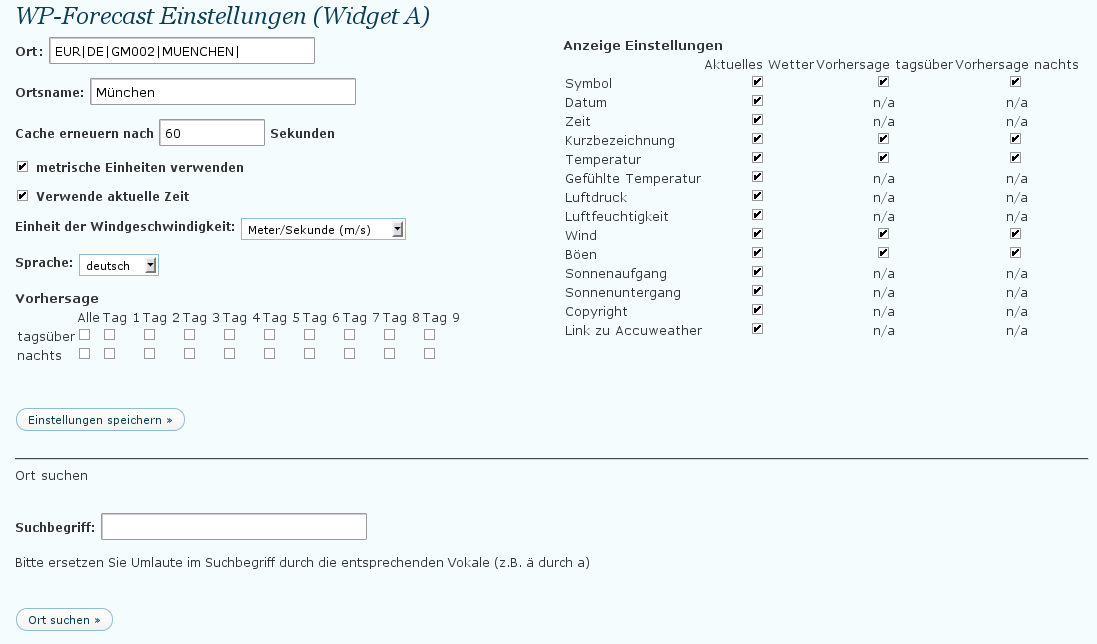
Location: The location whose weather data should be displayed. As accuweather’s abbreviations for the locations and its partly misspelled names cannot always be handled easily you can also search the location in the field Searchterm at the bottom of the settings dialog. Enter a search phrase (for instance London), and click on “Search location”. The results of your search are displayed in a dropdown list. Select your location from that list and click on “Set location”. The selected location with the necessary accuweather code will be displayed in the field Location. Click on “Update options” to complete your settings. Notice: accuweather does not support umlauts like german ü or swedish ø, so you have to replace them by the corresponding vowal (ü by u or ø by o) in your searchterm.
Locationname: Here you can enter an alternative locationname. The names that come from accuweather are mostly in english and will be replaced by your alternative name. Entering in this field will display no locationname at all.
Refresh cache after … secs: In this field you can enter the time interval (in seconds) after which the weather data should be updated. When calling a page that contains a wp-forecast-widget whose weather data is older than the displayed time interval, the weather data will be updated by accuweather.
Use metric units: Activating this checkbox will display metric units for temperature (Degree Celsius (C)) and wind speed (meter per second) instead of the english units Fahrenheit and mph.
Use current time: Activating this checkbox will display the current time instead of the last time the weather data had been updated by accuweather.
Windspeed-Unit: Here you can set the windspeed-unit. Possible settings are meter per second (m/s), kilometer per hour (km/h), miles per hour (mph) and knots (kts).
Language: Here you can set the language for the selected widget. Currently english, german, french, dutch, portuguese, italian and swedish are supported.
Forecast: Here you can select which forecast data should be displayed beside the current weather data. A forecast up to 9 days is possible, seperated into day (Daytime) and night (Nighttime).
Save your selected settings by clicking on “Update options”.
4.3 Display configurations (adjustable for each location/widget)
On the right side of the settings dialog you see the display configuration for each weather data. A selected checkbox means the information will be displayed, a non-selected checkbox means it will not be displayed. “n/a” means ”not available”. The settings can be selected seperately for the current conditions, the daytime forecast and the nighttime forecast. Save your selected settings by clicking on “Update options”.
4.4 Configurations when using wp-forecast as widget
Content follows.
5. Displaying the forecast
Content follows.
5.1 Displaying by widget
Content follows.
5.2 Displaying by inserting the code in sidebar.php
wp-forecast offers you several functions when inserting the code directly into your sidebar.php.
function wp_forecast($wpfcid="A", $language_override=null)
function wp_forecast_range($from=0, $to=0, $numpercol=1, $language_override=null)
function wp_forecast_set($wset, $numpercol=1, $language_override=null)
The necessary parameter for the function wp_forecast is the ID of the widget to display. Optionally you can indicate the iso languagecode of the language the forecast should be displayed in.
Examples:
wp_forecast ( "A" ); // displays widget A in the language of your blog's settings
wp_forecast( "C", "de_DE" ); // displays widget C in german
As wp-forecast supports up to 20 widgets, you have to indicate which widget to use when you insert wp-forecast manually into your sidebar. To do so, use letters in alphabetical order.
For your first widget use wp_forecast(„A“), for the second one wp_forecast(„B“), and so on.
For downwards compatibility the first widget (”A”) will be selected automatically when the code is inserted without an ID (wp_forecast()).
Generally you should check the existance of a called function in your sidebar.php. You can do this by a simple if-query which can be used with the other functions as well:
if ( function_exists(wp_forecast) ) {
wp_forecast( <widget_id> );
}
The function wp_forecast_range displays several widgets in a table. The parameters are a from- and a to-value (both integer), the number of widgets per table row and the iso languagecode. All parameters are optional.
Without parameters the first widget is displayed in your standard language.
Examples:
wp_forecast_range(0,6,2); // displays the first 6 widgets in a table 3x2
wp_forecast_range(10,20,5) // displays widgets 10 to 20 in a 5x2 table
The function wp_forecast_set displays the number of widgets you would like to display. Given the parameters are an array with your selected number of widgets, the number of widgets per table row and the iso language code. The number of widgets is essential, the other two parameters are optional.
Examples:
wp_forecast_set( array("C","D","H","A"), 2 ); // displays widgets C, D, H, A in a 2x2 table
wp_forecast_set( array("A","B","C","K","L","M"), 3, "fr_FR"); // displays widgets A, B, C, K, L, M in a 3x2 table
5.3 Direct call via an URL
It is possible to call a widget directly via an URL. The URL has to be something like http://my.wordpress.domain/wp-content/plugins/wp-forecast/wp-forecast-show.php?wpfcid=A. „A“ indicates your selected widget. As a second parameter you can use language_override to adjust the language of the widget.
6. Version History
- pre 1.0b see older versions
- 2007-07-17 v1.0b added support for up to 20 widgets with different, locations and settings, added portugese language support, weather data is now cached in the database, no cookies needed anymore, default value of missing translations is now english, removed configuration dialog from widgets page to avoid misunderstanding about setup, fixed some minor errors
- 2007-07-25 v1.0b2 work around for bug 4275 in wordpress 2.2, removed widget id from output
- 2007-08-04 v1.0b3 fixed output of before/after widget stuff for empty forecast, fixed different parameters for calling wp_forecast as widget and from sidebar.php, added swedish translation (thx to Håkan Carlström)
- 2007-09-01 v1.0b4 fixed humidity / pressure checkbox, removed hard coded formatting, added css class, added support to show current time
- 2007-09-09 v1.0 fixed accuweather call for us locations, now works with wordpress mu
- 2007-10-01 v1.1 fixed: setting the current time could not be disabled, fixed: on some servers the current date was converted to 0, switched translations to gettext as recommended by wp codex
- 2007-11-05 v1.2 extend error handling for serverloss, added iso8859-1 coded german translation, fixed bug with german winddirections, added a widget title, removed standard location label (this can be handled via alternate location
- 2007-12-26 v1.3 added french translation, added german icon 11 (fog, 11_de.gif), extended css classes to support horizontal view via css, removed repeating section title
- 2008-01-26 v1.4 fix loading the wright textdomain when called from outside wordpress, added a bit debug code, work around for a bug in k2rc3 theme, added italian translation, added english lanuage file, a bit of code cleanup, extend function wp-forecast to select language per widget, added functions to display a set and a range of widgets at once
- 2008-05-12 v1.5 fixed two dutch phrases in dutch translation, added norwegian translation (thanks to Eilif)
- 2008-07-11 v1.6 removed some hardcoded css, it is now possible to call the widget directly outside from wp, fixed a problem with wp >2.5 and the widget dialog, removed some redundant html, when showing no current weather information, placed forecast header into own table with own css class, added timeout parameter for the accuweather connections, rounded humidity to integer values, fixed some typos in swedish translation and added norwegian selection (thanks to RAM_OS)
Older versions to download:
Have you ever considered writing an ebook or guest authoring on other websites? I have a blog centered on the same subjects you discuss and would love to have you share some stories/information. I know my readers would value your work. If you’re even remotely interested, feel free to send me an email.
Hi,
How to add the wp-forecast on a page?
Hello Johnny,
you can add wp-forecast weather to a page or post using a shortcode e.g. [wpforecast id="A" lang="de_DE" width="300" height="500" ] for showing the weather for location A in german with a width of 300 pixel and height of 500 pixel.
Hello, I’ve a problem with the wp-forecast plugin for wordpress. Since 3 or 4 days, I have this message: „Failure notice from provider:
Connection Error:http_request_failed“
I don’t know what can I do. it’s an API problem, do have you ever been the same kind of problem ?
Thank.
from france
Hello talensac,
can you please try the connection test (link on admin page) and post the results. Did you change anything in your setup or did your provider change some security settings for php? I guess your are using accuweather as the weather data provider. Is it correct?
Regards, Hans
Hello, thanks for your attention.
The results of the connection test is this one with Accuweather (than I use):
„Checking for Weatherprovider Accuweather
Checking default transport
Test ends in error.
Error-Message was http_request_failed Couldn’t resolve host ‚forecastfox.accuweather.com‘
Checking fsockopen transport
Test ends in error.
Error-Message was http_request_failed Couldn’t resolve host ‚forecastfox.accuweather.com‘
Checking exthttp transport
Test ends in error.
Error-Message was http_request_failed Couldn’t resolve host ‚forecastfox.accuweather.com‘
Checking streams transport
Test ends in error.
Error-Message was http_request_failed Couldn’t resolve host ‚forecastfox.accuweather.com‘
Checking curl transport
Test ends in error.
Error-Message was http_request_failed Couldn’t resolve host ‚forecastfox.accuweather.com'“
With Weatherbug the result is:
„Checking for Weatherprovider WeatherBug
Checking default transport
Test ends in error.
Error-Message was http_request_failed Couldn’t resolve host ‚.api.wxbug.net‘
Checking fsockopen transport
Test ends in error.
Error-Message was http_request_failed Couldn’t resolve host ‚.api.wxbug.net‘
Checking exthttp transport
Test ends in error.
Error-Message was http_request_failed Couldn’t resolve host ‚.api.wxbug.net‘
Checking streams transport
Test ends in error.
Error-Message was http_request_failed Couldn’t resolve host ‚.api.wxbug.net‘
Checking curl transport
Test ends in error.
Error-Message was http_request_failed Couldn’t resolve host ‚.api.wxbug.net'“
I haven’t change nothing in my setup and there was no problem before with the same setup and WP version.
I have seen the same problem on many website use this plugin. I think is not a problem with my website…
Cheers
Well, the message says „http_request_failed Couldn’t resolve host“ and thats the problem. It means that your server is not able to resolve the accuweather server name to an ip address. There can be various reasons for this. I would recommend to ask your provider why this host is not resolved. I assume your RSS newsfeeds are working (dashboard)? You can also try different transfer methods which wp-forecast supports. You can change it on the admin page. Just try them one after the other by changing the transfer method and then doing the connection test again. Sometimes we have had experienced that due to security restrictions only one or two of the methods are working.
Regards, Hans
hi Hans,
Thanks again for your help.
I have tested the different transfer method in admin, but it‘ doesn’t work too.
In other way, I have an error feed message in dashoard
this message is:
A feed could not be found at http://blogsearch.google.com/blogsearch_feeds?hl=en&scoring=d&ie=utf-8&num=20&output=rss&partner=wordpress&q=link:http://localhost/mywebsite/. A feed with an invalid mime type may fall victim to this error, or SimplePie was unable to auto-discover it.. Use force_feed() if you are certain this URL is a real feed.
Do you think there’s a link with my accuweather problem ?
ps: it’s strange I can’t ask here to your last message…
Yes, of course. Maybe this hostname could also not be resolved.
You should check your logs or contact your provider and ask if they can find out why the names are not resolved.
Sometimes this is a security restriction but we need to know what your provider allows and what not. They should also tell you if they did a change to the configuration during the last weeks.
Yes, I have posted my question to my provider last tuesday and I have no answer from them…
I will tell you
The widget works great. Thank you.
My client also wants the weather displayed on a page. I’ve done this using the [wpforecast id="B" width="400" height="700"] shortcode. However the text is quite small and nothing I seem to change in the css file seems to change it when I use the short code.
When using the shortcode is there a way to make the text a little larger?
Thanks for your help,
Karen
Hello Karen,
yes , of course. You can use the css attribute font-size to change the font size. E.g. to change the font size of the text in the details block
use the wp-forecast-curr-details class. To change the size in the header use wp-forecast-curr-head. But you have to change wp-forecast-default-nowp.css to change the css settings for the shortcode. Do not change wp-forecast-default.css because this one is only for widgets.
regards, hans
hi hans,
congrats for the work on wp-forecast.
i’m having trouble working with wp-forecast.
if i select any specific widget (i.e: location ‚A‘ or ‚B‘ or ‚C‘) it displays correctly. but if i choose the ‚?‘ display method and select a location from the drop-down list the location doesn’t change. it never updates. what am i doing wrong? i’m using wp-forecast 3.4 on wordpress 3.1.2.
Please help! Thanks
hello pato,
the wpf_update.js script is not loaded on your page. the normal way this works automatically. did you change anything or can you test it with only wp-forecast activated?
regards, hans
i don’t get it …
i’ve deactivated all other plugins and it still doesn’t work.
the file script wpf_update.js is set on the wp-forecast folder in the server.
the wpf_update(); function is being called at wp_selector onchange.
i haven’t changed anything besides setting all the locations already.
already tried the following wp-forecast versions 2.0, 2.4 and 2.8 to 3.4.
what should i do?
thanks in advance!
hi pato,
okay I have checked it again and found jquery is also not loaded. so please check your theme header.php for the following hint from twentyten theme:
regards, hans
hi again hans …
finally i can see the light at the end of the tunnel. the weather is updating.
even though the weather is updating there’s another issue that came up … it’s related with the widget display method. the wp-forecast widget is being displayed over two different widgets.
the title and the location dropdown menu are in the right postition but then the weather content is displayed in the widget that follows.
this wasn’t happening before. =/
any clue on how to solve this?
thanks!
hi again hans …
nevermind the issue of wp-forecast being displayed in two different widgets. it’s miracously solved!
thanks so much for the help and fast replies!
wouldn’t be able to solve this issue without your help.
thanks for the wonderfull plugin and all the help once again.
you’re the man!
danke!
hi Hans,
Thanks for your suggestion. Sounds good to me.
Could you help me identify which .php file is calling wp-forecast?
I am using the Delicious with Genesis from StudioPress.
(And feel silly having to ask…)
Auf Dich!
Bruce
hello Bruce,
wp-forecast is called from wp-forecast.php
regards, hans
Hello Hans,
Thanks I was searching wp-[hyphen]forecast not wp_[underscore]forecast.
Unfortunately it is still not working.
I have tried quite a few things.
But changing the 3 locations I find wp_forecast( ); don’t seem to have any effect.
 function wp_forecast($wpfcid="C", $language_override=null) //from approximately line 204 of wp_forecast.php
 wp_forecast("C", $language_override);//line 239
 wp_forecast("C", $language_override);//line 272
It still displays the „A“ location.
I assume it is because I am inserting WP_FORECAST as a widget, rather than calling it manually.
http://dan-icecanada.com/
user: Dan-Ice Guest
pass: guest
Really appreciate your time.
hello Bruce,
I thought your idea was to show a random place in the wp-forecast widget. I think it is the easiest way to use php as I described few comments before. If you do not want to edit sidebar.php direclty, just use a php exec plugin that lets you enter some php and displays the result as a widget.
regards, hans
Hi Hans,
I do want to use your random function. I was just using „C“ to see where to put the random function.
I do not have a „sidebar.php“ in my theme from StudioPress.
So I am still struggling with where to put your random $wid generator.
Can i put it directly in wp_forecast.php?
If not, I have no idea where to put it.
This is what I see in my „home.php“ file.
Widgets screen. There you can drag the widget into the Home Middle Right widget area on the right hand side.", 'genesis'); ?>
regards,
bruce
p.s. simplified site username to guest (password is still guest)
http://dan-icecanada.com/
hi Bruce,
as I mentioned before use a php exec plugin (e.g. WP exec php, Shortcode Exec PHP or Exec-PHP) which lets you put php code into a widget. then use my php code. thats all.
regards, hans
hi Hans,
Working with PHP Execution and the script you gave me (with the change from hyphen to underscore).
Thank you for your time and patience.
Bruce
Hello Hans,
I would like to have a different, random city’s weather show up each time the page loads.
Pretty new to Word Press (2 weeks) but my thought is to write a function to choose a location at random from an array.
Where do you store the configuration settings for the selected location.
I cannot find where „ARC|GL|GL003|NUUK|“ is stored, for example.
Thanks in advance for any help.
dankeschön
Bruce
hi Bruce,
wouldn’t it be easier so control this before wp-forecast? well, anyway, the data is stored in the wp-options table, where option_name is like wp-forecast-opts(ID).
I would think about using a piece of php generating the randomness befor calling wp-forecast e.g.
regards, hans
can i use do_shorte_code for showing forecast, i mean something like this [wp-forecast]
hello fede,
the answer is „yes, you can“. the syntax is [wpforecast id="A" lang="de_DE" width="300" height="500"], where only the id is required, the rest is optional.
regards, hans
Hi,
I just installed your wp-forecast. I would like it to show exactly as in your web page,
https://www.tuxlog.de/wordpress/2008/wp-forecast-reference-v17-english/
in the right column. This is, with a search for weather location. I read on the installation, but could not find a way to have that.
Can you help on that?
Thanks
hello fred,
if I got you wright, you want to have a selection widget in your sidebar. first of all, add the some locations via the admin screen, then add the widget and choose the question mark as your location from the widget settings. do not forget to check the pull down checkbox in the settings of the widget A to get the pull down forecast.
thats it, hans
Hello,
Yes it was. I entered directly the location code, cause the search engine did not work for me.
Thanks so much.
Hello,
When I enter „london“ in „Search Location“, it does not appear any dropdown list to set the accurate place. There are a lot of London throughout the world, and the one that is displayed don’t correspond to the London I want to get (London, City of Westminster).
Thanks for all.
Carlos
hello Carlos,
I just tried it and get for accuweather entering London as a search term: London United Kingdom(Westminster, England) and various other London’s. is this the place you are looking for? the code is EUR|UK|UK241|LONDON| if you want to enter it directly in the location field.
regards, hans
Hello: thanks, This is the most powerful widget – and it works!
Well, I still have a trouble
I got it work perfectly with Accuweather
Unfortunaltely, the service has few locations for Botswana where I am intrerested.
WheatherBug has many more. But I dont manage to get it work… (on WP 3.01)
When I search location, like „Paris“ I get
„XML Fehler: EntityRef: expecting ‚;‘ in Zeile 1“
(is it because I dont have a partner ID?)
I have gone th weatherbug Widget buildrr and do not know what to pick from the long code
Forecast
Satellite
Photos
Your weather just got better.
Any help?
hello Agnes,
I would say thats the problem. to use the service of weatherbug you need a partner id, which yo can get at the weatherbug website.
regards, hans
Pingback: Wp-forecast Plugin | Wordpress Plugins
is there a way to have a custom field on each post (in which i will provide the location code) and retrieve it on wp-forecast widget?
This will provide dynamic weather info for every destination (every post is one destination on my website) and i consider it a very important feature.
thanks
hello giannis,
I am sorry this is not possible at the moment. but you can of course use a custom field to select the widget you want to use (A,B,C,…). you only have to read the customfield in your sidebar.php and place it as a parameter in the wp-forecast call as (hopefully) described in the docs. the feature you proposed is also dangerous, it could slow down your webpage and raise the load on the accuweather servers rapidly. I will think about it, but it is not that easy to decide in which way such a feature can be added without doing any hamr out there.
thanks and regards, hans
The Serbian Latin translation has been sent.
My cache is set on 900. I think the main problem is time difference between my server and accuwethers. Its about 1 h time difference and 15 min in cache. And that is it…
But, it is not a big problem :) So what if its a day icon in the 22:00, little light wont harm us :)
All the best
Zoran
Hello Hans,
Thanks for quick answer…
I knew that the problem was not in your code… Its a good code… And if accuweather sends the numbers of pictures, there is almost nothing we can do about that…
It cant be dawn in 22:00 in Frankfurt. It has to be late in the evening… The same time is in Belgrade… So its a little bit strange when somebody looks at the forecast and seas the sun is shining :) But, when you go accuweathers site there is a moon picture…
If you find some solution, please let me know…
I will gladly send you translation. You can see my e-mail, so send me a mail and I will respond to you. I am working on Serbian Cyrillic translation too, so I will send you that too…
All the best from Serbia…
hello Zoran,
just sent you an email to give you my adress. actually it is twilight here at 22h at the moment it is not dark yet. but never the less maybe it is a delay because of your cache settings? if you set your cache to e.g. 7200 seconds you can have a delay of 2 hours worstcase.
looking forward to your translation, hans
Hello Hans,
First, thank you for this plugin! It is excellent! Everything is working good, and I have just one problem. If the sunset in Serbia is in 20:35 than from that moment the night icons should be in use. Am I right? But I have a situation that sometimes in 22:05 is sill showing icons wit a sun and not with a moon. How can I fix this? I saw tonight here on your site that you have the same problem. I don’t believe that there is a sun in Frankfurt in 22:00 h. :) Is it a problem with cache or with server time? Or something else. Hope that you can help me with this…
All the best form Serbia.
P.S. If you are interested, I can send you Serbian Latin translation…
hello Zoran,
the icons have a numbered code and accuweather delivers the number. the only thing wp-firecast does is take the number and show the corresponding icon. at the moment it is dawn at 22:00h in frankfurt..so it is not dark yet. the good news is that as far as i remember this changes over the year and in winter the night symbols are used earlier. if you find out what algorithm accuweather uses to set this, it would be an interesting information.
it would be great to have one more translation, looking forward to it
regards, hans
Pingback: wordpress « wp-forecast 3.0 beta – goes Multiuser « Tuxlog
Thank you, Took me a while to locate a weather script that would do what I wanted it to do. After having someone modify the output I finally have the look I wanted http://www.todaysredmond.com/ Can see it has been modified and styled to my header to display what I needed it to do.
So thank you again for providing this plugin.
Pingback: wp-popular.com » Blog Archive » WP-Forecast Reference
Thank you Hans for your answer,
I thought that thanks to „localization“, I could manage it manually (with the call load_my_plugin_domain, or maybe call for a translator domain). Actually, my entire project works, I can switch from french to english easily, except for wp-forecast in the sidebar. Too bad.
I tried to managed my sidebar manually but unfortunately, but I did not succeed in. So I won’t use it.
Anyway, again, thank you for your help !
Hi Hans,
Thanks for that plug-in !
I am building a multilingual blog where you can switch from a language to another by clicking on a button.
Unfortunately, I have not found yet how to proceed if I want the widget to switch between the two languages : it always stays in the language I chose previously in wp-Forecast settings.
Any idea ?
Thanks!
hello Namps,
well, there is no automatic solution at the moment using widgets. but if you handle your sidebar.php manually it should be possible to change the language using a piece of php. you can give the language as the second parameter. the call is wp_forecast($wpfcid=“A“, $language_override=null) giving the the language code e.g. „de_DE“ or „en_US“ as the second parameter should do the trick.
hope it helps
hans
Hans, I’d like to send you my wp-settings.php file but I did not find your email on the website (the little icon at the end of your post does not work for me, the address box is empty in the message thunderbird opens )! Can you write your address in aposte or send me an email?
Thank you very much.
Eric
Hello Hans, thank you for your plugin!
I have a problem with the widget : if I choose the „?“ to have a dropdown menu with my two locations, I have an error message displayed above : (I can send you an image by email, it can be better…)
„Deprecated: Assigning the return value of new by reference is deprecated in W:\wamp\www\pellegrin\wp-settings.php on line 646
Deprecated: Assigning the return value of new by reference is deprecated in W:\wamp\www\pellegrin\wp-settings.php on line 661
and so on before the widget is shown.
Do you know what is the problem?
Thank you
hello Eric,
which version of wordpress do you use? did you make any changes to wp-settings.php? can you send me your wp-settings.php file please?
regards, hans
Hi Hans,
Great plugin, works really well, thanks!
I’ve got my plugin working at the moment in the bottom left of my website’s footer. What I want to do is change the format a little: remove the name of the city, and put the date, time and current weather on one line together, like this:
February 4, 2010, 1:45 am, [ICON] 8°C wind speed: 7 mph S
How can I do this? I’m happy to play with any PHP or Java, but which files and which part?
Many thanks,
Mark
hello Mark,
I would reccomend using the data api of wp-forecast it is described in the german wp-forecast reference under section 5.4. just use
$erg=wp_forecast_data("A","de_DE"); print_r($erg);replacing the widget id and the langugage code as needed.
you can then select which data to display using normal php code. since you use it in the footer, you have to edit the footer.php og your theme.
hope it helps, hans
p.s. sorry, this part isnt translated to english yet
Hi Hans,
Been away for a couple of weeks so only just got another chance to look into this. From what I can see, my blog time is correct. When I go to the ‚General Settings‘ page in the Admin area of WordPress it shows a ‚UTC‘ time and a ‚local‘ time. I’m assuming that the UTC time is the time of the UK web server where my site is hosted – the time is correct for the UK. I have teh timezone set to Calcutta (as I am in India) and the local time is shown correctly as +5.5 hours ahead of UK time. So this all seems correct, right?
But on my actual blog, the time shown by your plugin for Hyderabad is always 1/2 hour slow. (The times shown for the other two locations in the UK are correct). I have the use current time checkbox selected. Any idea why this might be? See here http://www.jos.co.uk for yourself.
Thanks, and keep up the good work James
James
hello James,
thats easy, wp-forecast uses the gmtdiff tag send by accuweather to calculate the time of the selected location. accuweather gives only 5 hours diff for Hyerabad and not as you expected 5.5 hours. just call http://forecastfox.accuweather.com/adcbin/forecastfox/weather_data.asp?location=ASI|IN|IN002|HYDERABAD and verify it yourself. as of version 2.6 wp-forecast has a time offset parameter which you can use to correct this. you have to enter 30 to correct the time for half an hour. can you try this please.
regards, hans
Hi Hans,
Thanks for working on the new version of your plug-in, the AccuWeather links are now working perfectly and open up in a new window which is much better!
I’m a little confused by the „Use current time / Time Offset“ feature though. It seems that these options are either one OR the other, i.e. you cannot use the current time with a time offset. Here in India, the time displayed is always 1/2 hour too slow and hence I want to add on 30 minutes. But I currently only seem to be able to do this when the „Use current time“ checkbox is not ticked. It is therefore only possible to offset the time that the weather forecast was updated by AccuWeather, and not the current time. Hopefully this is a simple fix! Also, it would be worth stating whether the time offset needs to be entered in seconds, minutes or hours. I think it is minutes (right?) but this is a little confusing as it doesn’t say and the refresh cache period directly above is in seconds.
Hope this feedback is useful! Regards, James
hello James,
it is designed as follows: if you check „use current time“, wp-forecast takes the blogtime, if you uncheck it wp-forecast calculates the time which comes from accuweaher (which is the time the weather data was stored at accuweather). the offset is entered in minutes and is meant as a possibility to correct the accuweather time, because there are some locations accuweather sends the wrong time.
for your situation there are two scenarios which can be possible. you blogtime is wrong, which is a problem with wordpress and should be corrected because all your comments, posts, etc. get the wrong time or wp-forecast calculates the wrong blogtime for you blog, which has to be analyzed in wp-forecast.
can you tell which case it is? I will add the unit of the offset in the next release.
thank you very much for your feedback
regards, hans
My site is aubstorehouse DOT com. (Sorry I don’t want any incoming links to it :) … If you want to contact me by email, that’d be great too. The WordPress version I’m running is 2.7. My own location is in Utah, but you should be able to see that on the page in the sidebar with the plugin information too. If you need more info, let me know. Thanks so much for looking into this!!!
I have an older version of WordPress which has been edited quite a bit and I am not really intending on updating. The only thing I need to get working on it is a weather program of some sort and I have not been able to find one to suit my needs besides this one… but it constantly displays the wrong date and time. Is it possible to edit the plugin files for version 2.5 so that the time stamp displays correctly and also so the clickable link will work instead of appending my own URL to it? If anyone could help me it would be MUCH appreciated! :)
hello Micah,
can you post the link of your website and give mor details about the wrong time. there are locations whereaccuweather provides the wrong time due to timeborders within a country. I have heard from New Zealand and some other african countries. it should be possible to mak the changes for you but I need more details.
Dear Sir
First off thank you so much for a great widget :)
I have a question for you. If I post the weather data into a post, can it be made to keep the weather conditions at the time the post was made instead of displaying the current conditions?
hello Paul,
in fact it is not possible to „never“ refresh the weather data. but there is a possible work around which will fulfill most of your needs. just enter 9999999999 as refresh rate. this should be about 300 years or so and hopefully is sufficient for most of us.
regards hans
Hi Hans,
Thanks – the fix for the service provider link error you emailed through to me worked perfectly, as you can see at http://www.jos.co.uk. The link now follows through to the correct forecast page on the AccuWeather site. Thanks for your fast response!
One small thing though: Could the link be changed to open the AccuWeather site in a new page, rather than in the current page so that the viewer doesn’t have to navigate away from the site? Perhaps you could include a checkbox option in the admin page to let the user decide between opening in a new or existing page?
Also, I notice that the time displayed for India is 30 minutes slow (although I don’t use that feature on my site). Perhaps you could also include a manual correction option in the admin to allow the user to offset the time from AccuWeather if this is not correct (e.g. plus/minus 30mins, an hour, etc)? Just a thought.
Great plugin – thanks
James
Hi,
Great plugin, but I have the same problem with the link to the service provider that Glenn reported previously. Please have a look at my web site here: http://www.jos.co.uk.
An example of one of the strange links that are followed when you click on the place name is as follows:
http://www.jos.co.uk/about/contact/http://www.accuweather.com/world-index-forecast.asp%3FlocCode%3DASI%7CIN%7CIN002%7CHYDERABAD%7C%26amp;metric%3D1
It seems my web site name is being added to the start of the accuweather address, but even if you remove this portion in the address bar (so that the link is http://www.accuweather……) it still does not work, I’m guessing because the various symbols are not ebing resolved.
Any thoughts about how this can be fixed?
Thanks, James
hello James,
yes, I just sent you a corrected wp-forecast-show.php via pm. the fix will be integrated into the next release.
Hi,
The search function doesn’t seems to work.
I tried to input london in the search box but can’t see the dropdownbox afterwards?
Does anybody have the same problem, solution?
greetz
Mike
hello Mike,
did you click on the search button? did you see any messages? hitting just enter will activate the „save“ function not the search function.
it would be helpful to have a little bit more precise description of your problem. thanks hans
Hello and thanks for this cool widget. I used the link to weather provider option, but it sent me to some odd variation on our site’s url.
How can I customize that link to have it go to a specific link on the weather provider (a 5-day forecast page). Or how can I hardcode a link into the bottom of the weather widget? I am just using the setup through the options.
hello Glenn,
I just tried it here and it seem to work. what provider do you use, accu or bug? you can customize the link in the func_accu.php func_bug.php files. it is the variable with index servicelink. can you give an example of the weired link? cheers hans
Hello,
thanx for the widget, it works really well! :)
I have one question though; i want to change the style a but, but i cannot find the file ‚wp-forecast.css‘
I can find wp-forecast-default-nowp.css and wp-forecast-default.css but wordpress says they’re both inactive. And if i change anything in here, it has no effect.
So how do i change the style?
thanx!
Willemijn
hello Willemijn,
sorry, that the english documentation is not up to date. it is easy just copy the file wp-forecast-default.css to wp-forecast.css and make your changes in the file wp-forecast.css. wp-forecast will recognize that there is a wp-forecast.css and use it instead of the wp-forecast-default.css file.
Hi,
I want to use 5 widgets (for 5 countries/city to display) in, my wordpress 2.8, but firstable, the widgets are not well stacked and secondly I don’t want to dsiplay the title „The Weather“ but each city instaed.
Can I have some help please ?
Thanx
hello pinkasimov,
the problem with the widgettitle should be fixed with v2.4 which was released a few minutes before.
what do you mean by „not well stacked“?
thanks, hans
Thanks so much. That did the trick.
Sam
Thanks for creating this. A simple question I hope. I have the weather being displayed in the sidebar. Is there any way to eliminate this „current temperature:“? I want the simplest weather report possible and those two words don’t work with my design.
Thank you in advance – Sam
hello Sam,
this should be possible by changing the translation file. guessing you use en_US as your locale, you have to change the file lang/en_US.po using a po editor, than generating a .mo file (most of the po editors do this automatically. thats all. you should find a tutorial at the wordpress forums look for gettext, po, editor.
hello Andy,
you are right. you can change the css settings via the img.wp-forecast-curr and img.wp-forecast-fc-left css classes. try to change the width parameter or even remove it. by the way my opera dos not have this problem. you should check which css settings are taken using e.g. firebug.
cheers
hans
Hi, have you noticed that the icons sizes vary considerably depending on the browser used to view a site with this installed? Firefox is fine but all others (IE7/Chrome/Opera) show the forecsat icon very small regardless of how I edit the css file.
Can you help with this problem? I’m guessing it’s a css issue but not sure.
Thanks in advance,
Andy
Thank you verry much for the weather plugin! Works great!
I have send you a Romanian translation so you may add it to the standard distribution.
Best of Regards,
Ionut
hello Links,
can you give me the coordinate you use. I will have a look at the accuweather data. I know about some timezones which are not correct at accuweather, e.g. in australia
thanks
hans
Thanks for the weather plugin! Great!
I need to change the time, adding one hour because we are in summer time. Could you help me?
Thank you in advance!
Links
hi Tamas,
yes you need a mo file and one line of code to select the translation. I will gladly add the translation, just send the po file to me via pm.
thanks
hans
Hi!
Thanks for the weather plugin! Great!
I needed it in Hungarian, so I translated the .po file… and uploaded it… However, I still cannot change to Hungarian.
May be I need a .mo file? If so… how do I generate it? (I made the translation with Kwrite in Linux, Ubuntu)
I gladly send you the result, so you may add it to the standard distribution… other Hungarians may use it, as well.
Thanks again,
Greetings,
Tamas
Pingback: WordPress: Plugin Updates KW 44/08 | blaudenker.de
Pingback: WordPress: Plugin Updates KW 43/08 | blaudenker.de
Thanks so much for this plug-in! It took a minute or two to figure out how to get it to work but after that it was clear sailing! No pun intended!
hello Louis,
thank you for your detailed desciption of the problem. First of all I checked the mapping between icons and text which I got from accuweather. as you said this seems to be correct. I now have prepared a keelung widget at my test site waiting for conditions where this problem occurs (hopefully soon).
I will report further results here.
hans
Hans, sorry, everything is working now GREAT PLUG IN!
Hans, I found the way to use like widget, but no image is displayed.
how to fix it? many thanks. ciao stefano
hi Stefano,
I would suggest using widgets, if you are a beginner to php. it is easy and you can add the widgets to your sidebar using the widget dialog of wordpress.
alternatively you can send mir your sidebar php, telling where you want to place the wp-forecast widget and I will insert it for you.
hans
Sorry I’m not very code expert and try to copy and paste your code but it did not work..
there are a lot of and / and <?php…….. etc.
could you suggest me how to do? I can only paste somewhere the total code list of my sidebar..
many thanks anyway, ciao.
Hi, after I sent my comment I got busy with other things. Sorry.
I’ve put a screenshot of the problem here:
http://lddubeau.com/downloads/wp-forecast-screenshot.jpg
In this screenshot you can see the moon out in Keelung, which is correct but the description says „sunny“. This is just one example. We’ve had several days with temperatures in the 30C range where wp-forecast reported „cold“.
Contrarily to what I initially thought, I now do not thing the problem is with the text of the messages displayed by wp-forecast. I think the problem is elsewhere. Maybe in the internal logic… Or maybe accuweather is misreporting data. I don’t know.
Also of note: I did not notice any problem with the Gaithersburg, Maryland weather, only with Keelung (which is located in Taiwan).
This is where I’m using wp-forecast:
http://lddubeau.com/avaktavyam/
hello Jaska,
first of all it would be great to get your finnish translation to put it in the package. I you like to, send it to me. as you report some of the descriptions are a bit messed, can you give it to me in detail, so that I am able to fix it. I suppose you use the v1.9, the newest one. is this wright? the english description is not updated yet to v1.9. sorry.
thanks
hans
Hi again,
Sorry, now tha situation in my testsite is opposite: the finnish descriptions are ok (I made a map and wrote the wrong descriptions into finnish translation), and as you can see, the swedish and english ones (not mine, but original translations) are ..hmmm odd.
Yours, JAska
Hi,
I think I have the same problem than Louis. I made a Finnish translation and first I thoght it was ok. But then I realized that the sun is shining outside and my blog’s forecast shows just the right icon – but the short description says it’s mostly cloudy with thunderstorm or something like that (in finnish, of course). There seems to be nothing wrong in the translation file, i’ve checked it many times and tried to make a new translation over the swedish one etc.
When I change the language (in the wp-forecast options) to swedish or english, descriptions are ok. You can see the problem in my testsite: http://testi.kangosjarvi.net
Yours, Jaska
hi. Thanks for plugin
perfect.
Regards
hello Louis,
I just checked the official accuweather description against the translation and can’t finde a bug.
I allway took the description from http://accunet.accuweather.com/wx/accunet/symset.htm.
can you please give me some details, e.g. the location or a screenshot via pm.
thanks
hans
I think the English translation of the weather descriptions is buggy. I have verified that accuweather is providing the proper information. But even if accuweather is correct, wp-forecast says it is snowing outside when in fact the temperature is over 30C and it is evidently not snowing. I’ve verified that the location name, date, time, temperatures, pressure, etc. are correct. The only incorrect thing I noticed is the description (e.g. „Mostly cloudy with snow“ when there is no snow).
I’m using version 1.7.
Thank you for the widget.
hello again,
yes, of course you can change the labels. just edit the corresponding .po file in the lang folder and build a new .mo file. if you have any problems generating the .mo file, send the po file I will generate it for you. there are a lot of tutorials and manuals of gettext, just google a bit: gettext po file editor.
hans
hi Karen,
it seems that this is a problem from accuweather. I have had a similiar report from new zealand and we found out accuweather sets the wrong timezone, daylight savings combination. but we can find it out for mount gambier I get +9 hours from UTC and 1 hour daylight saving. is this correct?
regards
hans
One other question…. Is there a way to change the text?
In the German the first letter is always a capital such as in Wind, however in the English translation is appears as wind with a small first letter.
Sorry to be picky – I’m a programmer but in another language so I have no idea how to do this kind of programming!
Thanks,
Karen
Unfortunately the time doesn’t work for us in that it’s incorrect. The widget is 30 minutes wrong possibly because South Australia is in a different time zone to Eastern Australia? Is there any way I can correct this?
Otherwise it’s a great widget and I’ve just removed the time for now although it would be great to have it back.
Thanks for this widget.
Regards,
Karen
http://www.calarygardens.com
„hi Agent,
have a look at wp-forecast.css.horizontal. it is a base css for a horizontal display.“
Yeah, I took a look at that. I just seem to get it to line up horizontal. I don’t know if it’s the html table coding that’s causing problems or what.
I’ll keep trying to mess with the css. Thanks
hi Agent,
have a look at wp-forecast.css.horizontal. it is a base css for a horizontal display.
I would like it to display it horizontal, How would I go about doing that?
hi Alex,
just send it to me. I will add it to the next release. the email adress is webmaster (at) tuxlog (dot) de.
thanks in advance
hans
I have completed the french traduction but i don’t know where i can send it. It may be useful for french users !
A.BARRET
hi dicsep,
yep, if you look at the german reference at section 5.3 there is an example using iframe.
it has not found its way into the english translation of the reference yet.
hans
Hi,
how can I add this directly to a page (and not to the sidebar)? Can you tell me the code to enter into the page directly?
hello Bram,
what you see is the dutch translation file (.po). I wonder why it is displayed. did you test if it works when you use another language? as far as I understood the problem only occurs on some occasions. can you detail when it appears? does it only occure with one location or with every? in which way did you embedd wp-forecast in your sidebar (widget, or sidebar.php)?
thanks for more details via pm
hans
Hello Hans,
I have one more problem. At some moments the widget is (somehow) not able to show the weather data and instead of it ugly text occurs. Take a look at this: http://www.scintilla.utwente.nl/~bramj/wp-forecast_error.jpg. Do you have any idea about this? Can I edtit something in the files such that wp-forecast shows nothing when it is not able to fetch data from the weather-site.
Kind regards,
Bram
hello Bram,
in most cases it depends on the theme you use. I visited your website but can’t find any wp-forecast widgets, so it is very difficult to analyze. look at styles.css and wp-forecast.css.
hans
Hello,
Thank you for this nice plugin! However, I have one question: how can I reduce the large vertical distance above and under the icon-part (till the next widget)? Maybe take a look at my weblog (http://www.scintilla.utwente.nl/~bramj/) to see what I mean.
Bram
hello Prevole,
I checked this and found out that accuweather sends 9 hours off diff to gmt plus one hour of daylighsaving. so kyoto gets gmt + 10 hours.
is this a problem with accuweather or wp-forecast?
hans
Hello,
This widget is very great but I find a little bug. I use it for the location of Kyoto in Japan and the time is not correct. The time is one hour in advance than the real time.
Thanks a lot.
Pingback: >Tuxlog